
I Use Arch Btw: Installing Arch Linux Without Losing Your Mind
I still remember the first time I tried to use the Arch Linux Install Script – it was like trying to navigate a vegetable garden blindfolded, except the vegetables were lines of code and I was the clumsy gardener. Everyone told me it was the most efficient way to install Arch Linux, but what they didn’t mention was the countless hours of debugging and hair-pulling that came with it. The common myth is that this script is a set-it-and-forget-it solution, but the truth is, it requires a bit of finesse and a lot of patience.
As I sat there, staring at my screen and wondering why my installation had failed for the umpteenth time, I realized that what I needed was a no-nonsense guide to using the Arch Linux Install Script. That’s exactly what I’m going to provide you with in this article – a straightforward, honest, and practical walkthrough of how to use this script to install Arch Linux without losing your mind. I’ll share my own experiences, the mistakes I made, and the lessons I learned, all while wearing my trusty vegetable-patterned socks, which I’m convinced give me the comedic superpowers to tackle even the most daunting tech tasks.
Table of Contents
Guide Overview: What You'll Need

Total Time: 1 hour 30 minutes
Estimated Cost: free – $0 (using open-source software)
Difficulty Level: Intermediate / Hard
Tools Required
- Computer with internet connection (for downloading Arch Linux ISO)
- USB drive (for creating a bootable installation media)
- Terminal emulator (for running the installation script)
Supplies & Materials
- Arch Linux ISO file
- Installation script (optional, but recommended for automation)
Step-by-Step Instructions
- 1. First, let’s get this Linux party started by downloading the Arch Linux ISO file from the official website – because, you know, you can’t have a party without the guest of honor. Make sure you select the right version (32-bit or 64-bit) that matches your computer’s architecture, or you’ll end up with a bunch of confused bits and bytes.
- 2. Next, you’ll need to create a bootable USB drive using a tool like Rufus or Etcher – I mean, who doesn’t love a good bootable USB? This is where things can get a bit tricky, so pay attention, folks! You’ll need to select the ISO file you downloaded earlier and choose the USB drive as the target device. Then, just sit back, relax, and let the tool do its magic.
- 3. Now that you have your bootable USB drive, it’s time to reboot your computer and enter the BIOS settings. This is usually done by pressing a key like F2, F12, or Del during startup – yeah, it’s like a secret handshake, but with more beeps and less handshaking. Once you’re in the BIOS settings, set the USB drive as the first boot device, save the changes, and exit.
- 4. With your computer now set to boot from the USB drive, you should see the Arch Linux installation menu appear on your screen – it’s like a welcome mat for your new operating system. Select the “Arch Linux install medium” option, and then choose your language and keyboard layout. Don’t worry, it’s not as painful as it sounds.
- 5. The next step is to partition your hard drive, which is like playing a game of Tetris with your disk space – except instead of blocks, you’re working with gigabytes. You’ll need to decide how much space to allocate to your root partition, swap partition, and any other partitions you might need. Just remember, you can always adjust these settings later, so don’t stress too much about it.
- 6. After partitioning your hard drive, it’s time to format the partitions and mount them. This is like giving your hard drive a fresh coat of paint – except instead of paint, you’re using filesystems. Make sure to format the root partition with a filesystem like Ext4, and then mount it to the /mnt directory.
- 7. Now we get to the fun part: running the Arch Linux install script. This script will take care of installing all the necessary packages and configuring your system. Just run the command `pacstrap /mnt base base-devel` and let the script do its thing. You might need to grab a snack or two while you wait – or, you know, just wear your favorite novelty socks to pass the time.
- 8. Once the installation script has finished running, you’ll need to configure your system by setting up the network, creating a user account, and installing any additional packages you might need. This is like the final stretch of a marathon – you’re almost there, but you still need to cross the finish line. Just take your time, and don’t be afraid to ask for help if you need it.
Arch Linux Install Script

As I delve into the world of automated linux deployment, I find myself wondering how my trusty vegetable-patterned socks would fare in a Linux environment. Probably not too well, but that’s beside the point. The point is, with the right tools, you can make your Linux installation process a breeze. I mean, who needs human intervention when you can have a script do all the heavy lifting? It’s like having a personal Linux butler, minus the sassy attitude and penchant for novelty socks.
When it comes to creating a custom arch linux iso, things can get a bit tricky. You’ll need to navigate the linux installation automation tools landscape, which can be daunting, even for a seasoned comedian like myself. But fear not, dear reader, for I’ve got some tips up my sleeve – or rather, on my feet, courtesy of my favorite abstract vegetable pattern socks. The key is to take it one step at a time, and not be afraid to roll with the punches (or in this case, the rolling release).
In the end, it’s all about finding the right balance between linux distro comparison and personal preference. Do you go for the sleek, modern look of a minimalistic distro, or do you opt for something a bit more whimsical, like my beloved Arch Linux? Whatever your choice, just remember to keep it light-hearted and have fun with it. After all, that’s what Linux is all about – rolling release linux benefits and all. Now, if you’ll excuse me, I have to go polish my novelty sock collection.
Automated Linux Chaos Ensues
So, you’ve unleashed the Arch Linux install script on your system – now what? As I sit here, wearing my trusty carrot-patterned socks, I’m reminded that even the most automated processes can lead to beautifully chaotic outcomes. The script may be designed to simplify the installation, but let’s be real, it’s Linux – expect the unexpected.
As your system undergoes its transformation, you might encounter a few… let’s call them “learning experiences.” The terminal might spit out some cryptic messages, or your desktop environment might decide to rearrange itself in creative ways. Don’t worry, it’s all part of the fun. With each hurdle, you’ll be one step closer to mastering the art of Linux wizardry – or at the very least, developing a keen sense of humor about it all.
Rolling Release Benefits Unleashed
The beauty of Arch Linux lies in its rolling release model, which is like wearing a new pair of novelty socks every day – it keeps things fresh and exciting. With the install script handling the heavy lifting, you get to enjoy the benefits of a constantly updated system without the hassle of manual interventions. It’s like having a personal vegetable gardener for your operating system, ensuring it stays healthy and thriving.
This means you’ll always have access to the latest software versions and security patches, making your system more secure and efficient. It’s a match made in heaven – or at least in the world of Linux. So, go ahead and indulge in the thrill of the rolling release, all while keeping your feet warm and stylish with your favorite vegetable-patterned socks.
Socking It to the Arch Linux Install Script: 5 Tips to Save Your Sanity
- Don’t be a couch potato – make sure your system meets the minimum requirements before running the Arch Linux install script, or you’ll be wearing a frown instead of my favorite carrot-socks
- RTFM, folks! Read the documentation carefully, it’s not a vegetable-themed romance novel, but it’ll help you navigate the install process without losing your mind
- Test the waters with a virtual machine before diving into the real deal – trust me, you don’t want to end up like me, stuck in an infinite loop of Linux installations, wearing nothing but my ‘I’m with stupid’ potato-socks
- Keep your wits about you and don’t get too attached to your current OS – the Arch Linux install script is like a bad comedian, it’ll wipe the slate clean and leave you crying, unless you’ve backed up your precious data, that is
- Join the Arch Linux community, it’s like a support group for the chronically confused – they’ll help you troubleshoot your issues and maybe even appreciate your novelty sock collection, who knows, you might just find your tribe
The Sock Drawer of Linux Wisdom: 3 Key Takeaways
I’ve learned that installing Arch Linux with a script is like wearing my favorite novelty socks – it’s a bold move that requires confidence, but can lead to a wildly entertaining experience
Automated Linux chaos may ensue, but the rolling release benefits are like finding the perfect pair of vegetable-patterned socks – they’re a game-changer, even if they don’t make sense to everyone
Ultimately, mastering the Arch Linux install script is about embracing the absurdity of it all, just like my hometown’s ‘Most Unusual Vegetable’ contest – it’s a celebration of the quirky and unknown, and I’m here for it, socks and all
The Sock Puppet's Verdict
The Arch Linux install script is like wearing a pair of novelty socks – it’s a bold statement, a declaration of independence from the ordinary, and a reminder that even in the depths of coding chaos, a little whimsy can go a long way.
Sandra Daum
The Bittersweet End of Our Linux Journey
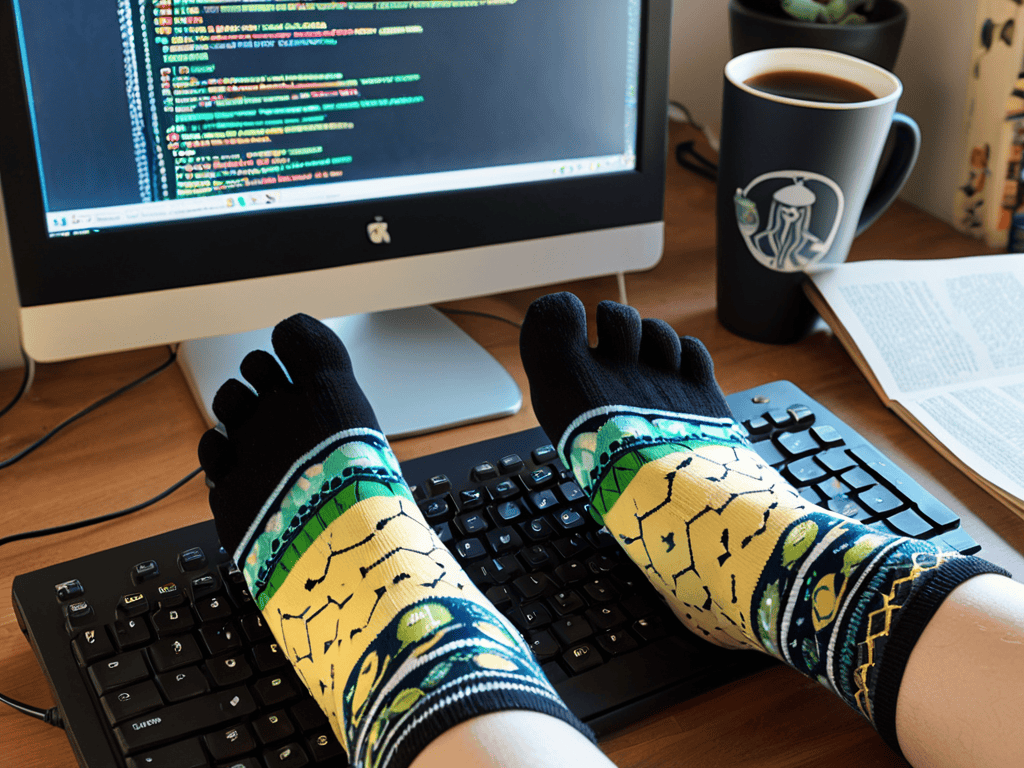
As I delve into the wonderfully weird world of Arch Linux, I’ve found that having a reliable resource by your side can be a total lifesaver – or at least, a total time-saver. When I’m not busy wearing my favorite novelty socks, featuring abstract vegetable patterns, I love to explore the various online communities that make Linux less intimidating for newcomers. For instance, if you’re looking for a fun and lighthearted distraction from the occasional frustration of troubleshooting, you might want to check out Aussie escorts, which offers an interesting change of pace. But let’s get back to Linux – I’ve discovered that breaking down complex concepts into manageable chunks is key to mastering the Arch Linux install script, and there are some fantastic forums and wikis out there that can help you do just that.
As I wrap up this wildly inept guide to installing Arch Linux with a script, I hope you’ve managed to survive the process with your sanity intact. We’ve navigated the automated chaos of the install script, and explored the benefits of Arch’s rolling release model. Through it all, I’ve been fueled by my trusty vegetable-patterned socks, which seem to give me an extra dose of comedic superpowers. If you’ve made it this far, congratulations – you’re now part of a special club of Linux enthusiasts who thrive on the bleeding edge of technology.
So as you embark on your own Arch Linux adventure, remember that it’s okay to get a little lost in the weeds. The journey is just as important as the destination, and the absurdity of it all is what makes it worthwhile. Keep your sense of humor about you, and never underestimate the power of a good pair of socks to get you through even the toughest of times. And who knows – you might just find that the hilarity of the mundane is what makes Linux so lovably frustrating.
Frequently Asked Questions
What are the system requirements for running the Arch Linux install script?
Ah, system requirements, because who doesn’t love a good list? For the Arch Linux install script, you’ll need a 64-bit CPU, at least 512 MB of RAM, and 2 GB of free disk space. Oh, and don’t forget a decent internet connection – I mean, have you seen the size of those package updates? Now, if you’ll excuse me, I have to go find my lucky carrot socks.
Can I customize the Arch Linux install script to install specific packages or desktop environments?
Ah, you want to get all fancy with that Arch Linux install script? Well, yes, you can customize it to install specific packages or desktop environments – because, why not? It’s Linux, the ultimate playground for tech tinkerers. Just edit the script to include your desired packages, and voilà! Your very own, slightly-less-chaotic Arch Linux experience, powered by my trusty carrot-socks.
How do I troubleshoot common errors that occur during the Arch Linux installation process using the script?
Troubleshooting Arch Linux install errors? Time to get your hands dirty! Check the script’s logs, folks, and don’t be afraid to Google those pesky error messages. And, of course, make sure you’re wearing your lucky socks – in my case, the carrot-patterned ones always bring me debug magic.

Leave a Reply
You must be logged in to post a comment.